
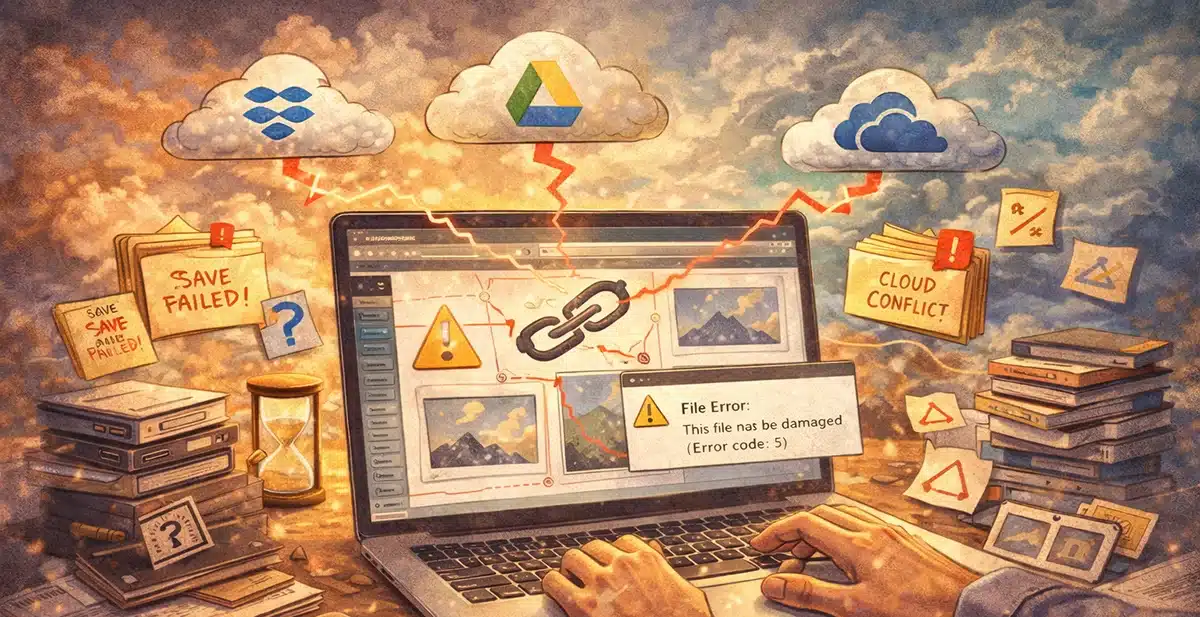
Live file-syncing services can silently corrupt InDesign documents by interrupting how the application writes linked assets and internal registries.
Adobe InDesign is not a lightweight document editor.
It functions more like a database-backed layout engine that rewrites large portions of its document structure every time links change, previews regenerate, or metadata updates.
Cloud sync platforms such as Dropbox, Google Drive, and OneDrive were not designed with that behavior in mind.
When these systems monitor and modify files in real time, conflicts can occur without warning.
This cloud sync and InDesign issue rarely announces itself clearly.
Instead, it appears gradually—failed saves, unexplained repair prompts, broken image links, or documents that behave normally until a new asset is added.
These symptoms are often misattributed to file corruption, damaged images, or software bugs. In many cases, the real culprit is live syncing.
Table of Contents
Why InDesign Is Especially Vulnerable to Live Sync
InDesign relies on uninterrupted write access to its document container, particularly when linked content is introduced or updated.
Unlike text-based files, an INDD document is a complex binary structure.
When a linked image is placed, InDesign does far more than store a file reference. It updates an internal links registry, generates previews, writes metadata, recalculates stacking order, and adjusts page-level render data.
These operations occur rapidly and repeatedly during normal work.
A cloud sync service monitors the same file for changes and reacts immediately.
The moment it detects activity, it may snapshot, version, or temporarily lock the file to begin synchronization. If this happens while InDesign is mid-write, the application can lose exclusive access to its own document.
The result is a partial write that leaves internal structures inconsistent.
Text edits and shape adjustments often survive these collisions because they touch fewer subsystems.
Linked images almost always trigger the failure because they force deeper internal updates.
Why the Problem Can Appear Suddenly
This failure mode often emerges after a software update, even if the same workflow previously worked without issue.
Adobe updates frequently adjust how files are written, especially around previews, accessibility metadata, and link handling. At the same time, cloud sync tools evolve to respond faster and more aggressively to file changes.
A workflow that functioned for years can cross a tolerance threshold overnight.
The change may not affect every document.
Smaller layouts or text-heavy files might never trigger the conflict.
Larger, image-driven documents—such as brochures, sponsorship decks, or magazines—are far more likely to expose it.
Once a file experiences one interrupted write, subsequent saves often worsen the condition.
The document can enter a state where it opens and saves but fails the moment a new image is linked.
Why the Issue Can Follow a File Across Computers
A corrupted internal state caused by sync interference travels with the document itself.
If an INDD file is damaged during a sync collision, opening it on another machine does not magically fix the problem.
The document may exhibit the same behavior elsewhere, leading users to conclude that the file itself is irreparably broken or that InDesign is unstable.
In reality, the corruption originated during live syncing and was simply preserved.
This explains why preference resets, reinstallation, or even opening the file on another computer often fail to resolve the issue.
Safe Workflows for InDesign and Cloud Storage
The solution is procedural, not technical: InDesign needs exclusive access while it works.
Two approaches are consistently reliable.
Work Locally, Then Sync
The most robust workflow is to keep active INDD files on a local, unsynced drive.
When work is complete, the file is closed and then copied into a synced folder for backup or versioning.
This approach is widely used in professional publishing environments and avoids all live-write conflicts.
Pause Sync While Working
If the INDD file must reside in a synced folder, synchronization should be paused before opening the document.
Syncing can be resumed only after the file is closed and InDesign has released it.
This preserves the convenience of cloud storage while still protecting the document during active editing.
Linked assets may remain inside synced folders without issue. The critical risk is the INDD file itself, not the images it references.
Why This Often Goes Misdiagnosed
Live sync interference mimics almost every classic form of InDesign corruption.
Common symptoms include:
- Files that save until an image is added
- Repeated “file needs repair” prompts
- Linked images that suddenly destabilize documents
- Errors triggered by scrolling or preview generation
- Problems that worsen with repeated attempts
Because the sync process is invisible, users logically investigate fonts, images, preferences, and software versions.
The true cause often goes unnoticed until syncing is paused and the problem immediately disappears.
Long-Term Best Practices
Cloud storage works best as a backup layer, not a live workspace, for repository-style applications.
For InDesign projects:
- Treat INDD files as exclusive-use documents during editing
- Avoid real-time sync tools while files are open
- Back up only closed documents
- Zip or package projects before long-term storage
- Assume that linked images trigger heavier write activity than text
This guidance applies equally to Dropbox, OneDrive, Google Drive, and similar platforms.
Cloud Sync & InDesign Q&A
Can Dropbox permanently damage an InDesign file?
Yes. If a sync collision interrupts a critical write operation, the file can enter an unstable state that persists across machines and sessions.
Why do text edits save but images break the file?
Text and vector edits modify simpler internal structures. Linking images updates multiple registries and preview systems, which are far more sensitive to interrupted writes.
Does pausing sync really fix the issue?
Yes. Pausing synchronization restores exclusive write access, which is what InDesign requires to function safely.
Is this an Adobe bug or a Dropbox bug?
It is a compatibility issue between a repository-style application and real-time sync systems. Neither tool is malfunctioning; they are simply not designed to operate on the same file simultaneously.
Is it safe to keep linked assets in a synced folder?
Yes. Linked images can reside in synced folders without issue. The primary risk is syncing the INDD file while it is open.
Why did this never happen before?
Software updates on either side can change timing and write behavior. A workflow that was once stable can become fragile without the user changing anything.